Install and open the first time
Updated 13 October 2026
Apple has not notarised Shutterfold yet. So the first time you open it, macOS stops it and asks you to check. You do the steps below once.
What you need
- A Mac with Apple silicon, such as M1 or later. To check, open the Apple menu and choose About This Mac. Intel Macs come later.
- macOS 13 or later.
- No account and no card. The scan is free.
Install
- Download Shutterfold.dmg from the download page.
- Open Shutterfold.dmg and drag Shutterfold to Applications.
Open it the first time
- Open Shutterfold from Applications. macOS says it cannot check the app. Close the message.
- Open System Settings, then Privacy & Security. Scroll down and click Open Anyway next to Shutterfold.
- Click Open Anyway again and enter your Mac password.
After this, Shutterfold opens like any other app.
If you do not see Open Anyway, open Shutterfold again, then look again. macOS shows the button for about an hour after it stops an app.
What you see
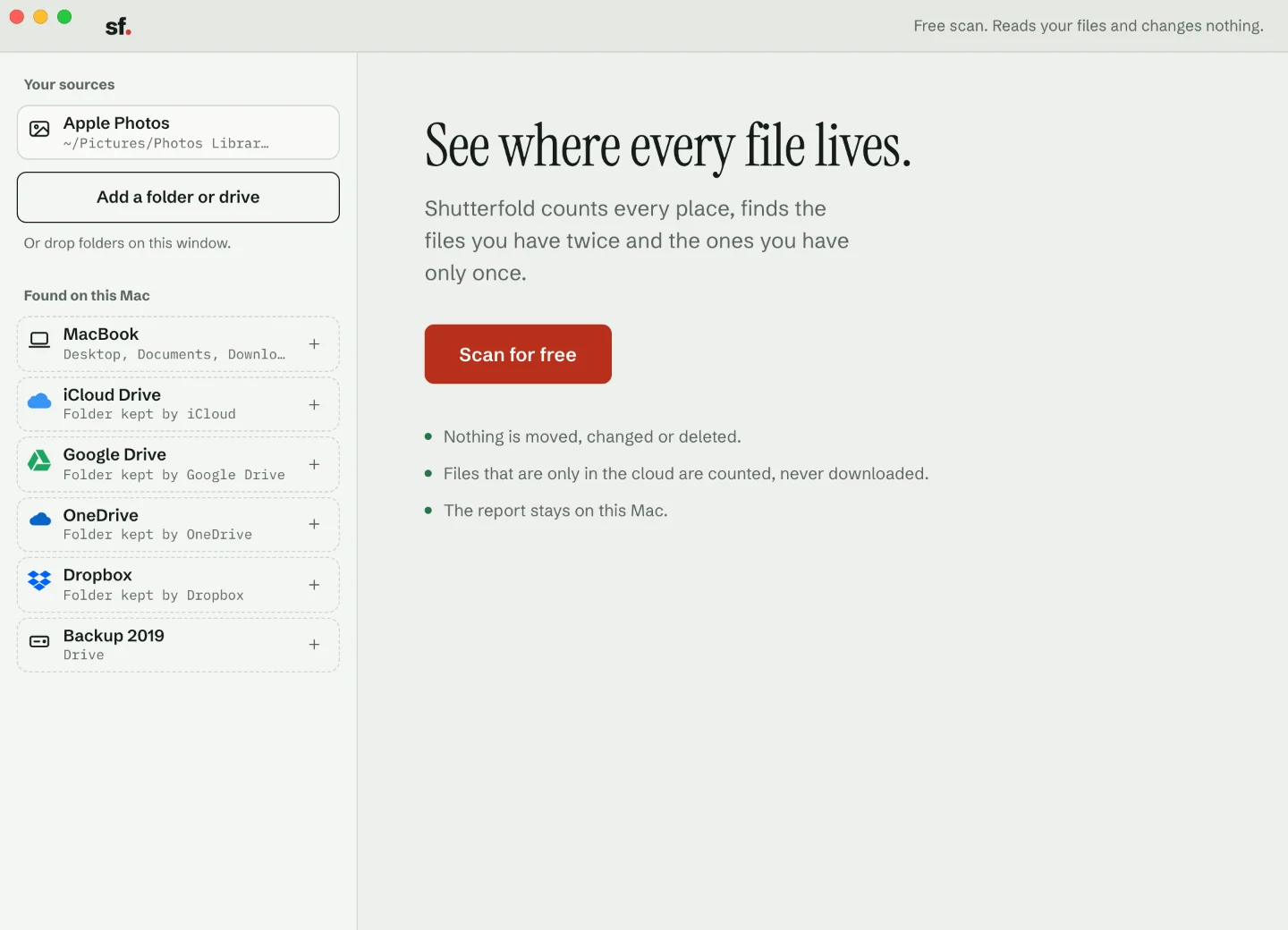
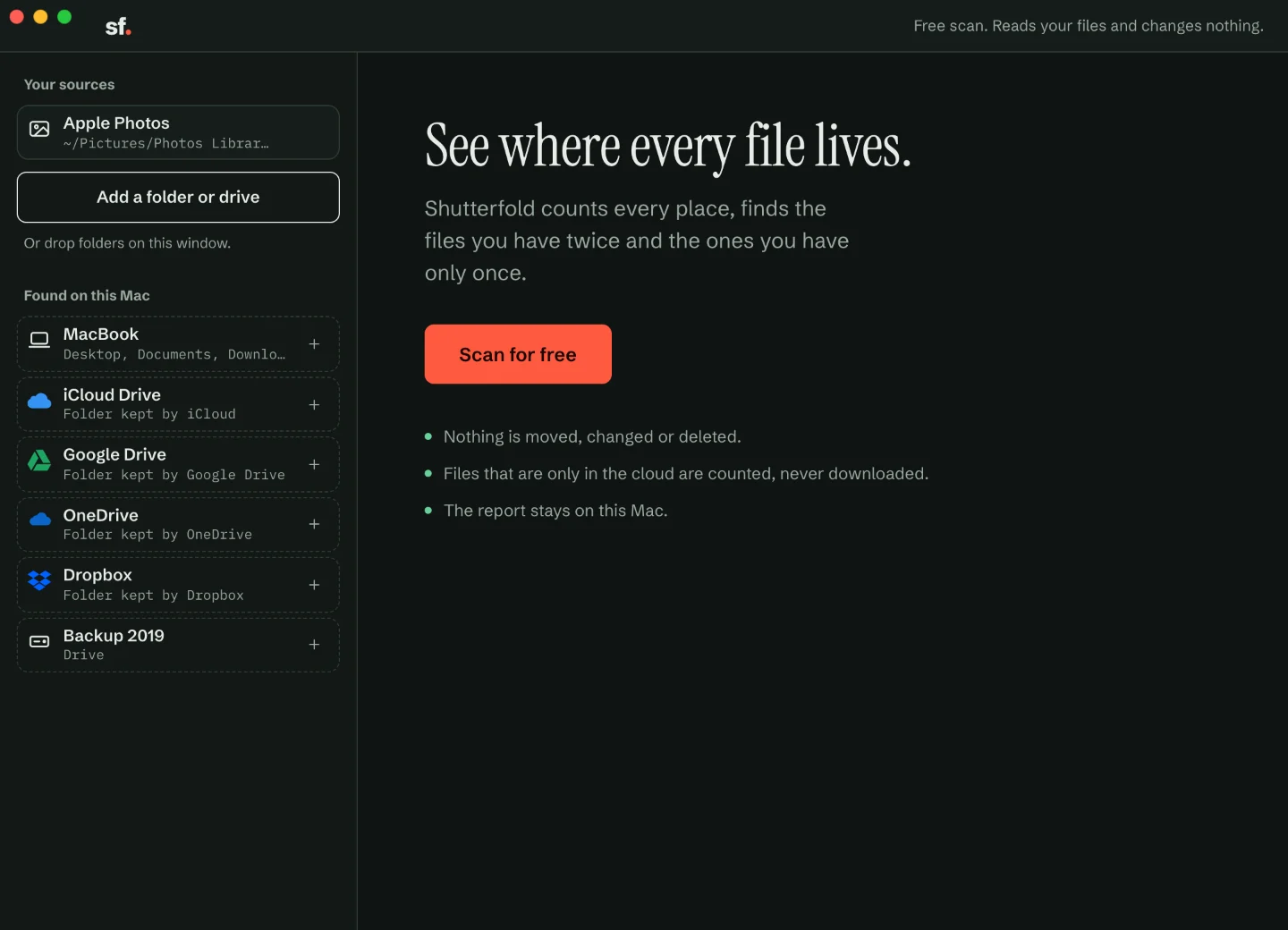
Shutterfold adds your Photos library on its own. Under Found on this Mac, it lists the other places it found: your home folder, your cloud folders and any connected drive. Click one to add it. Then click Scan for free.
To read the Photos library, Shutterfold needs Full Disk Access. See Full Disk Access and the Photos library.
Was this page useful? Is something wrong or missing? Email hello@shutterfold.com.